How It's Done.
Files to be shared.
It’s as easy as 1…2…3…. Okay, there maybe a little more involved than simple counting, but it is rather straight forward.
EmployIndy utilizes a software called Content Controller to send organizations copies of the JRI content.
We will need to know what Learning Management System (LMS) your organization uses and which standard (see Tech Requirements below) it supports.
Our team will then send the appropriate standard version of JRI to your LMS administrative team who will then upload the files to your LMS following your system’s importing process and building the courses as it makes sense with it’s structure.
Below is a list of what files you can expect to be shared with your organization once the Subscription Agreement is signed and payment is received.
There are a total of eight (8) files, one (1) for each course.
The Facilitation Training course should only be made available to the staff of your organization. All other courses can be shared with both staff and learners.
Identify what type of file you need.
Identify what type of file you need.
Once your organization has signed the Subscription Agreement and submitted payment, EmployIndy’s Learning Team will reach out and ask what file type(s), or standard(s), your organization’s LMS utilizes. We can provide any of the following:
- SCORM 1.2
- SCORM 2004 3rd Edition
- SCORM 2004 4th Edition
EmployIndy sends an email with a link.
EmployIndy sends an email with a link.
EmployIndy’s Learning Team will send an email that includes a download link to a zipped folder with all 8 files included in the file format you requested.
Upload the files into your LMS.
Upload the files into your LMS.
Your LMS administrator will upload the unzipped files into the appropriate location within the LMS. They will be able to organize them as it makes sense for your organization’s use of JRI, granting user access, assigning the content, etc as they normally would.
The key in this step is for you and your LMS administrator to know how your organization plans to use the content and which of your learners it should be shared. Access within your LMS to the content should ONLY be granted to the specific users you have purchased seats for.
Any user that launches a JRI file will count towards the total user count of your plan, so it’s important to make sure in setting up the courses the correct learners have access.
Introduction to JRI
Introduction to JRI
This course has 1 file associated with it.
The Introduction to JRI course is for both facilitators and participants. It lays out the purpose of JRI as well as what to expect when taking the courses, how to navigate through the content and how to create a digital portfolio to store any professional documents developed during JRI and beyond.
File Name: 0-JRI-Introduction to Job Ready Indy (JRI)
Audience: Participants and Staff
Mindsets
Mindsets
This badge has 1 file with 6 lessons:
- Badge Introduction
- Skill: Growth Mindsets
- Skill: Lifelong Learning
- Skill: Self-Confidence
- Badge Wrap-Up
- Badge Assessment
File Name: 1 – JRI-Badge 1 – Mindsets
Audience: Participants and Staff
Self-Management
Self-Management
- Badge Introduction
- Skill: Time Management & Organization
- Skill: Persistence
- Skill: Adaptability
- Skill: Independence & Self-Discipline
- Skill: Integrity
- Skill: Professionalism
- Badge Wrap-Up
- Badge Assessment
File Name: 2 – JRI – Badge 2 – Self-Management
Audience: Participants and Staff
Learning Strategies
Learning Strategies
This badge has 1 file with 7 lessons associated with it:
- Badge Introduction
- Skill: Effective Communication & Attention to Detail
- Skill: Initiative
- Skill: Aptitude & Awareness
- Skill: Decision Making & Problem Solving
- Badge Wrap-Up
- Badge Assessment
File Name: 3 – JRI – Badge 3 – Learning Strategies
Audience: Participants and Staff
Social Skills
Social Skills
This badge has 1 file with 6 lessons associated with it:
- Badge Introduction
- Skill: Connection
- Skill: Regulation
- Skill: Collaboration
- Badge Wrap-Up
- Badge Assessment
File Name: 4 – JRI – Badge 4 – Social Skills
Audience: Participants and Staff
Workplace Skills
Workplace Skills
This badge has 1 file with 7 lessons associated with it:
- Badge Introduction
- Skill: Employee Handbook
- Skill: Feedback in the Workplace
- Skill: Personal Safety
- Skill: Money Management
- Badge Wrap-Up
- Badge Assessment
File Name: 5 – JRI – Badge 5 – Workplace Skills
Audience: Participants and Staff
Launch a Career
Launch a Career
This badge has 1 file with 7 lessons associated with it:
- Badge Introduction
- Skill: Personal Branding
- Skill: Portfolio Building
- Skill: Job Search and Online Applications
- Skill: Interviewing
- Badge Wrap-Up
- Badge Assessment
File Name: 6 – JRI – Badge 6 – Launch a Career
Audience: Participants and Staff
Facilitation Training
Facilitation Training
This course has 1 file associated with it.
The Facilitation Training course is for specifically for an organization’s staff that will be facilitating the rollout of JRI with it’s participants. There is a wealth of optional resources available in this course to assist the organization in supporting participants in-person as they complete the badges, including Facilitation Guides and PowerPoints for each badge.
This course also houses Additional Resources that includes fliers directed at employers and participants, as well as, social media images and text, etc that organizations can use as they share they will be utilizing JRI within their larger program.
File Name: 7 – JRI – JRI Facilitation Resources
Audience: Staff
Tech Requirements.
FAQs + Troubleshooting.
In order to host the JRI content on your organization’s LMS, you will need to ensure the following technical requirements can be met.
Browser Requirements
Browser Requirements
The following browsers work with the JRI content:
- Google Chrome (strongly recommended)
- Microsoft Edge
- Mozilla Firefox
- Apple Safari
While the JRI content can be launched in any of the browsers listed above, we recommend users to use Google Chrome as the content has been tested extensively within it.
LMS File Standard Requirements
LMS File Standard Requirements
Your organization’s LMS will need to be able to add, launch and share content as one of the following standards:
- SCORM 1.2
- SCORM 2004 3rd Edition
- SCORM 2004 4th Edition
Cross-Domain Communication
Cross-Domain Communication
In order for your system to access the domain where the JRI content is deployed via the software Content Controller, you may have to whitelist that domain.
Transport Layer Security
Transport Layer Security
Transport Layer Security (TLS) is the standard encryption protocol intended to keep data secure when being transferred over a network. Your LMS will need to support TLS 1.2.
As it was introduced in 2008, most LMSs already do this, but if an issue arises, this will be a point to check when troubleshooting.
Who is Included in Plan User Counts?
Who is Included in Plan User Counts?
All accounts within your LMS that launch a JRI course will count towards the available max users. This means any staff, learner or “preview” launch will be included in the count.
Submitting a Support Ticket.
Submitting a Support Ticket.
EmployIndy’s Learning Team seeks to respond in a timely manner to all support tickets. To help with our ability to effectively respond, please be sure to include screenshots of the issue, with as much context as possible.
If at all possible include:
- first and last name of the user experiencing issues,
- their email address,
- name of JRI skill
- name of activity
- description of the issue
Our responses to support tickets may get flagged by spam filters. Please check your junk and spam folders if waiting for a reply.
Setting Up a SCORM Course for Reporting.
Setting Up a SCORM Course for Reporting.
When JRI is hosted on your organization’s LMS, EmployIndy is limited as to what information is received in accordance to how the courses are set up in your LMS.
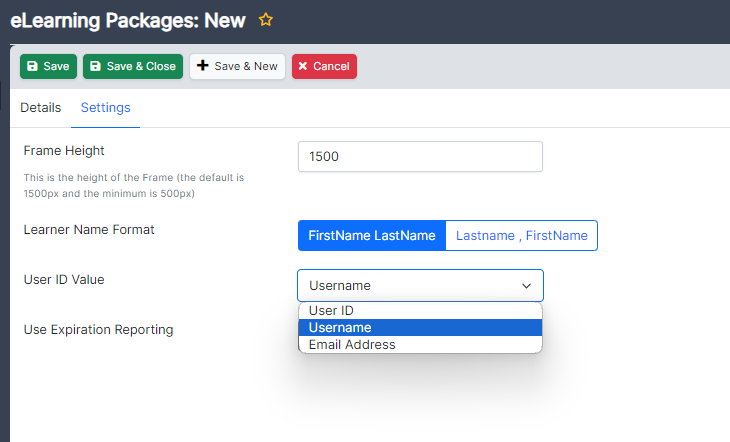
For example, in the LMS Tovuti when uploading the SCORM file the LMS Admin is able to indicate what unique identifier is connected to the course progression data and sent back to EmployIndy. Each LMS differs, but set up should be laid out in the LMS Help Center.
LMS Administrators should be able to run a basic activity report within your LMS to track whether learner’s have started and or completed the courses.
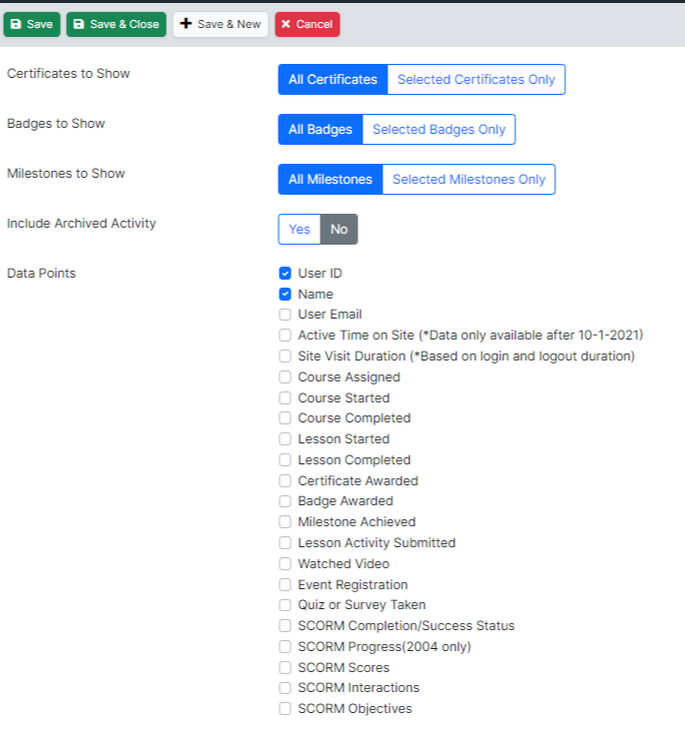
For example, in the LMS Tovuti under Activity Reports, the LMS Admin is able to customize what data is compiled on a report including SCORM start and completions.
Again all LMS differ, but how to run a report on learner course progress should be included in your LMS Help Center.